 Auditius Free audio editor and multitrack studio in your browser
Compress audio online to even out the volume
A compressor turns down the loudest moments so that quiet and loud parts sit closer together. Open your file, choose Effects ▸ Amplitude ▸ Dynamics Processing…, set Threshold and Ratio, preview and apply. Auditius does it in your browser for free, without uploading anything.
- Free
- No install, no account
- Files never leave your computer
- English and Spanish
Dynamics compression, not file compression
This guide is about dynamic range: the gap between the quietest and loudest parts of a recording. Compressing it does not make the file any smaller. To reduce the file size, choose File ▸ Save As… and save it as MP3 (*.mp3) with a lower bitrate, such as 128 kbps.
How to compress audio, step by step
The Dynamics Processing window opens as soon as your file has loaded.
- Click Open a file to compress, or use File ▸ Open… (Ctrl+O), and choose your recording.
- Select the part to compress, or leave nothing selected to process the whole file.
- Open Effects ▸ Amplitude ▸ Dynamics Processing… and pick a preset: Gentle Vocal for speech, Drum Smash for punchy drums or Broadcast Limiter to hold back peaks.
- Lower Threshold until the loud passages start to be turned down. Everything above it is reduced; everything below passes unchanged.
- Set Ratio. At 4:1, a peak that goes 4 dB over the threshold comes out only 1 dB over.
- Use Output Gain to bring the overall level back up, then press Preview to compare.
- Click OK and save the result with File ▸ Save As….
What the controls do
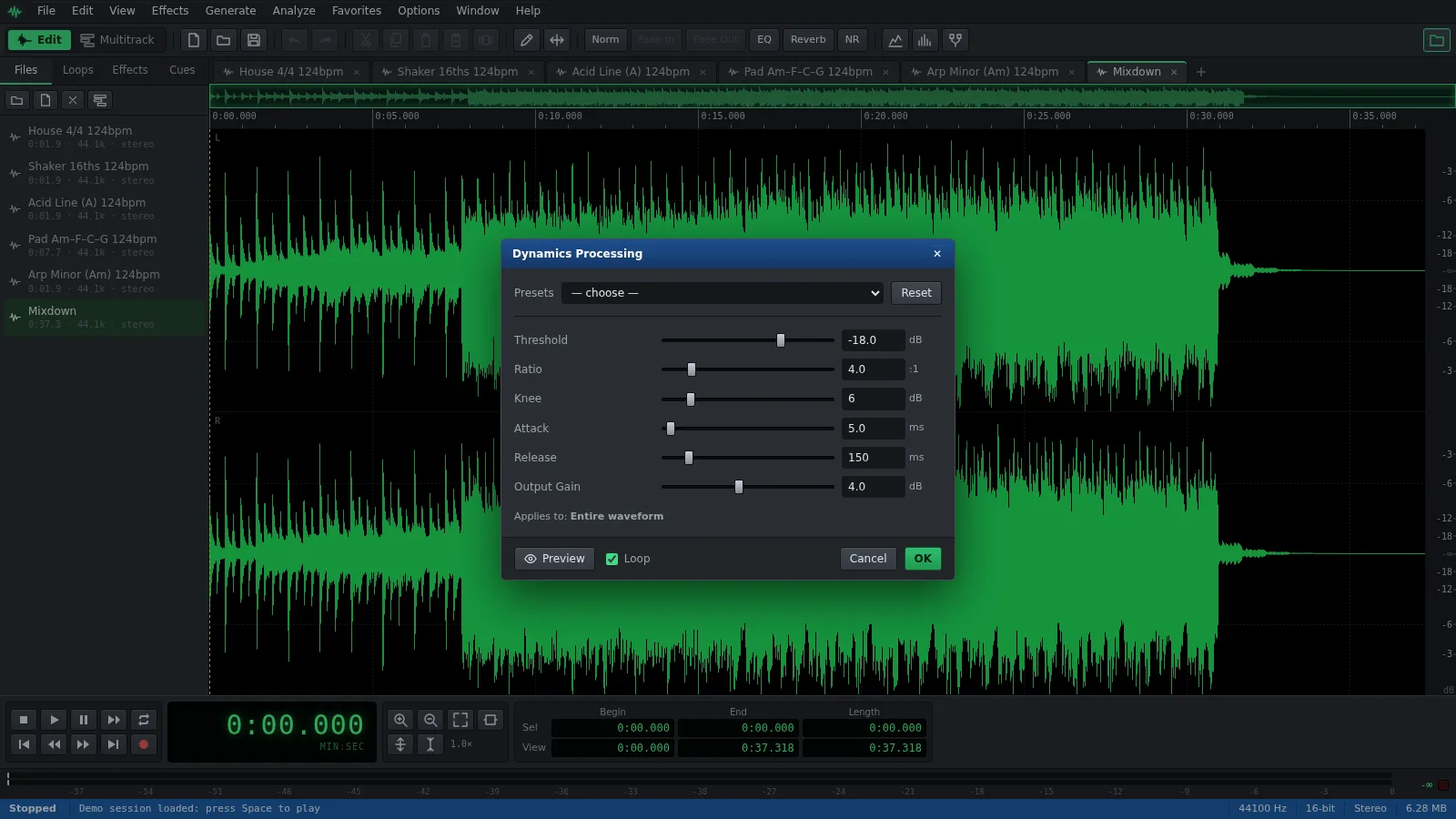
The defaults are a sensible starting point: -18 dB threshold, 4:1 ratio, 6 dB knee, 5 ms attack, 150 ms release and +4 dB output gain.
- Threshold (-60 to 0 dB): the level where compression starts. The lower it is, the more of the audio is affected.
- Ratio (1:1 to 20:1): how strongly levels above the threshold are reduced. 2:1 to 4:1 is gentle; 10:1 and above behaves like a limiter.
- Knee (0 to 40 dB): how gradually compression begins around the threshold. A wider knee sounds smoother.
- Attack (0 to 200 ms): how fast it reacts. A slower attack lets the start of drum hits and consonants through, so they keep their punch.
- Release (10 to 1000 ms): how fast it lets go. Too short can sound like pumping; too long keeps quiet parts turned down.
- Output Gain (-12 to +24 dB): makes up for the level the compressor removed.
Tips and related tools
Compression is usually one step in a chain, not the last one.
- Clean before you compress. Compression brings up the quiet parts and the background noise with them, so reduce noise first.
- Finish with Effects ▸ Amplitude ▸ Normalize… to set the final peak level, or with Effects ▸ Amplitude ▸ Hard Limiting… to raise loudness while keeping peaks under a ceiling.
- Effects ▸ Amplitude ▸ Noise Gate… does the opposite job: it mutes the quiet gaps instead of turning down the loud parts.
- Tick Loop next to Preview and compare with the original; it is easy to over-compress without noticing.
- In the Multitrack view, add Dynamics Compressor to a track’s effects rack with the fx button on the track header. It works in real time while the session plays, and Edit ▸ Master Effects… applies it to the whole mix.
Frequently asked questions
Does the audio compressor make my file smaller?
No. It changes the volume, not the size. For a smaller file, use File ▸ Save As…, choose MP3 (*.mp3) and pick a lower bitrate, such as 128 kbps for speech.
What compressor settings work for a podcast voice?
Start with the Gentle Vocal preset: -20 dB threshold, 2.5:1 ratio, 10 ms attack and 200 ms release. Lower Threshold a little if loud words still jump out, and adjust Output Gain to taste.
What is the difference between the compressor and Hard Limiting?
The compressor reduces levels above the threshold by a ratio, which evens out the dynamics smoothly. Hard Limiting sets a ceiling that peaks cannot cross. A common order is to compress first and limit last.
Should I compress audio before or after noise reduction?
After. Compression lifts quiet passages, including the noise floor, so a cleaner recording gives a cleaner compressed result.
Can I compress one track of a multitrack song?
Yes. Open that track’s effects with the fx button, choose Dynamics Compressor and click Add Effect. The track’s audio file is not changed, and you can tweak the settings while the song plays.
Audio tools
- Remove background noise from audio onlineRemove background noise from audio online for free: capture a noise profile, preview the result and export a clean file. Runs in your browser, with no uploads.
- Change the tempo of audio without changing the pitchChange the tempo of audio without changing the pitch: slow down or speed up songs, speech and loops in your browser. Free, nothing to install, and no uploads.
- Convert audio online: WAV, MP3, FLAC and OggConvert WAV to MP3 or FLAC online for free, or turn MP3, M4A and OGG into WAV. Choose bitrate or bit depth and export, all in your browser, with no uploads.
- Cut and join audio onlineCut and join audio online: trim MP3 or WAV files, remove unwanted parts and merge several recordings into one. Free, in your browser, with no uploads.
- Make loops and beats onlineMake loops online with royalty-free drum, bass and synth loops that follow your tempo. Repeat blocks, mix tracks and export WAV or MP3, free.
- Make audio louder onlineMake a quiet recording louder in your browser: boost the volume in dB, check the peaks so it does not distort and save the file. Free, and nothing is uploaded.
- Normalize audio onlineNormalize audio online for free: set the loudest peak to the level you choose, for one file or many, without clipping. Runs in your browser, with no uploads.
- Add a fade in and a fade out to audioAdd a fade in or a fade out to any song or recording in your browser: select the start or the end, pick a curve and save. Free, nothing to install, no uploads.
- Change the pitch of audio without changing the speedChange the pitch of a song or recording online for free: transpose by semitones or cents and keep the same speed and length. In your browser, with no uploads.
- Reverse audio online and play it backwardsReverse audio online for free: play a song, a voice or a sound effect backwards, or reverse only a selected part. Runs in your browser, with nothing uploaded.
- Make a ringtone from a song onlineMake a ringtone from any song online for free: pick the best 30 seconds, add fades, even out the volume and save it as an MP3. In your browser, with no uploads.
- Equalize audio online with a graphic equalizerEqualize audio online for free: boost the bass, tame harsh highs or clear up a voice with a 10-band graphic EQ, filters and presets. In your browser, no uploads.
- Add reverb to audio onlineAdd reverb to a voice, instrument or song online for free: choose a room, hall or plate preset, keep the tail and export. Runs in your browser, with no uploads.
- Record audio from your microphone onlineRecord audio from your microphone in the browser: watch the input level, record into a new or open file, play along in the multitrack and save as WAV or MP3.
- Remove clicks, pops and crackle from a recordingRemove clicks, pops and vinyl crackle from audio in your browser with the Click / Pop Eliminator. Preview the repair and save the result. Free, with no uploads.
- Fix clipped, distorted audio onlineFix clipped audio in your browser: spot the flattened peaks, rebuild them with Clip Restoration and keep the level below full scale. Free, nothing to install.
- Convert stereo audio to mono onlineConvert stereo audio to mono online for free: mix both channels with the Channel Mixer or make a true one-channel file. In your browser, with no uploads.
- Transcribe audio to text with AI, in your browserTranscribe audio to text with AI for free in your browser: word timings, click a word to hear it, SRT or VTT subtitles. Your recording is never uploaded.
- AI text to speech in Spanish and English, in your browserTurn text into speech with AI for free in your browser: Spanish and English voices, adjustable speed, pause tags and WAV export. Your text stays on your device.