 Auditius Free audio editor and multitrack studio in your browser
Make loops and beats online
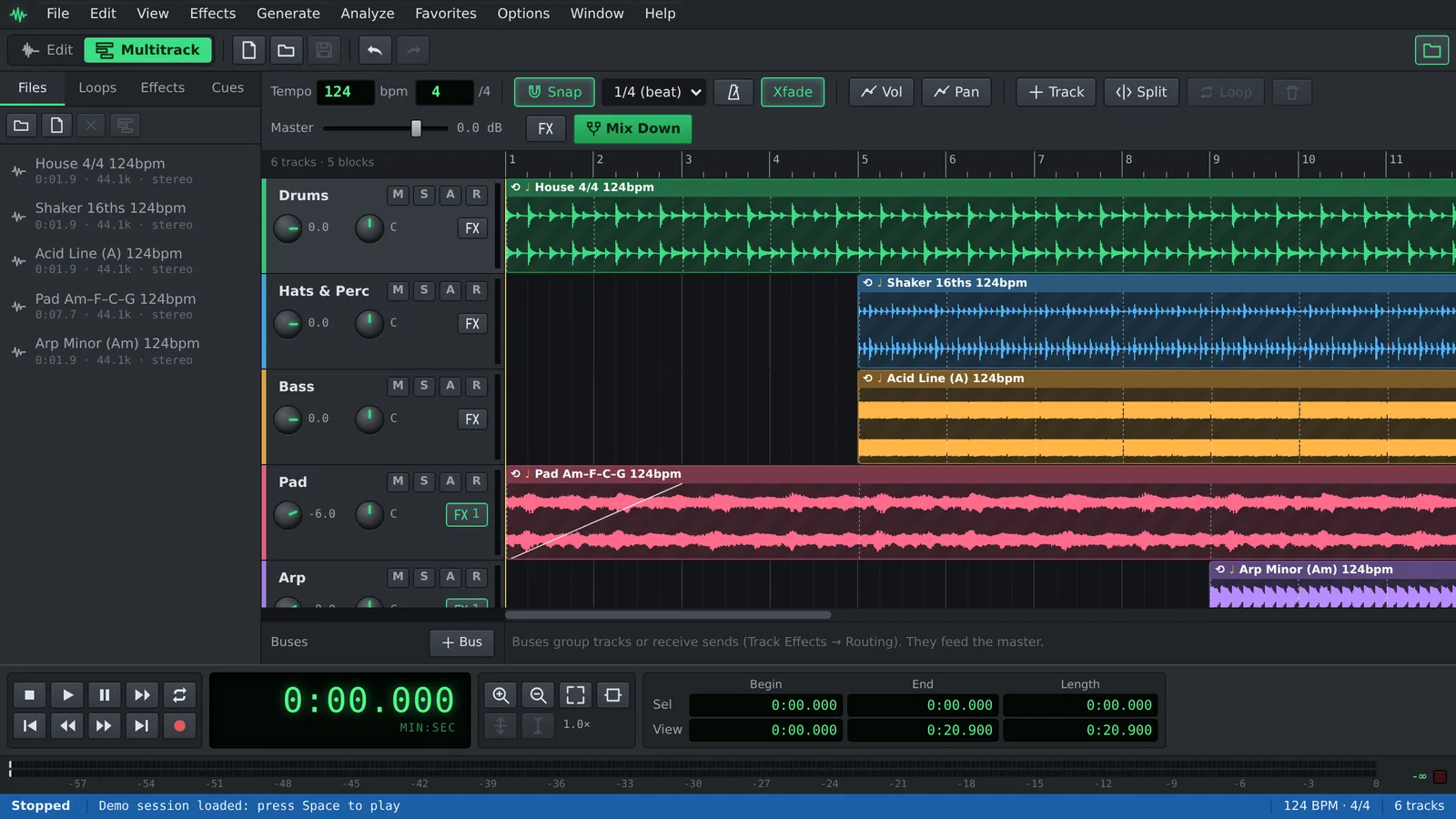
Open the Multitrack view, drag loops from the Loops tab onto a track and drag a block’s right edge to repeat it. Library loops follow the session tempo, so a beat at 90 BPM becomes a beat at 128 BPM by changing one number. It is free and runs in your browser.
- Free
- No install, no account
- Files never leave your computer
- English and Spanish
How to make a loop-based track
You can go from an empty session to an exported beat in a few minutes.
- Click Open the loop library. Auditius opens the Multitrack view with the Loops tab of the Organizer.
- Set the session tempo with Options ▸ Session Properties (Tempo)…
- Preview a loop with its play button, then drag it onto a track, or click + to add it to the selected track at the cursor.
- Drag the right edge of a block to repeat the loop for as many bars as you need. Options ▸ Snap to Grid keeps everything on the beat.
- Add tracks with Edit ▸ Insert Track (Ctrl+T) and layer drums, percussion, bass and synths.
- Balance the tracks with their volume and pan knobs, and add effects to a track, a bus or the master.
- Export with File ▸ Export Mixdown… as WAV, FLAC, MP3 or Ogg Vorbis, or keep the project with File ▸ Save Session…
What is in the loop library
The loops are synthesized by Auditius itself and always follow the session tempo. They are royalty-free: use them in your own tracks, including commercial releases, without credit or payment. You also find them under Generate ▸ Loop Library. To hear them in context first, File ▸ Load Demo Session opens an arrangement built from them.
- Drums: house, breakbeat, boom bap, trap hats, rock beat, tom fill and drum & bass.
- Percussion: a 16th-note shaker, claps on 2 and 4, and a rim clave.
- Bass: octave bass, funky bass, sub pulse and an acid line.
- Synth: a four-chord pad, a minor arpeggio, pluck chords and house stabs.
Use your own sounds as loops
Open your sample with File ▸ Open…, right-click it in the Files tab of the Organizer and choose Insert into Multitrack.
To make it follow the tempo, set its original tempo with File Tempo… in the same menu (Guess from length works for loops of whole 4/4 bars), then turn on Follow Session Tempo in the block’s right-click menu. Turn on Loop Enabled there too, or press L, and drag the right edge to repeat it.
To cut a clean loop from a longer recording, select exactly one or more bars in the Edit Waveform view, apply Edit ▸ Adjust Selection to Zero Crossings, listen with Options ▸ Loop Mode (Ctrl+L) and save it with File ▸ Save Selection…
Make it sound finished
Once the loops are in place, the mixing tools turn a sketch into a track.
- Volume and pan envelopes (View ▸ Volume Envelopes and View ▸ Pan Envelopes) shape single blocks for build-ups, drops and fades.
- Automation lanes, opened with the A button on a track, move volume, pan and effect settings over time.
- Buses and sends let several tracks share one reverb or compressor.
- Edit ▸ Master Effects… adds EQ, compression or other effects to the whole mix.
- Options ▸ Tempo Map… adds tempo and time-signature changes at any bar.
- Arm a track and record vocals or an instrument over the loop. With loop playback on, every pass is kept as a separate take.
Frequently asked questions
Can I change the tempo after placing loops?
Yes. Change it with Options ▸ Session Properties (Tempo)… and blocks stay on their bar and beat, and library loops and blocks that follow the session tempo are stretched to match.
Can I use the library loops in commercial tracks?
Yes. The loops are royalty-free, so you can release, sell and stream music made with them without credit or payment. Only reselling the loops on their own, as a sample pack, is not allowed.
Can I use my own samples and loops?
Yes. Open any file your browser can decode, such as WAV, MP3, OGG or FLAC, and drag it from the Files tab onto a track.
Does Auditius support MIDI or plugin instruments?
No. Auditius works with audio: library loops, your own files and recordings. There is no MIDI or plugin support.
How do I export my beat as an MP3?
Use File ▸ Export Mixdown…, choose MP3 (*.mp3) as the format and click Save. The tail setting decides whether reverb and delay are allowed to ring out at the end.
Is it free, and do my sounds stay private?
It is free and needs no account. Mixing and exporting run in your browser, so your samples and recordings are never uploaded.
Audio tools
- Remove background noise from audio onlineRemove background noise from audio online for free: capture a noise profile, preview the result and export a clean file. Runs in your browser, with no uploads.
- Change the tempo of audio without changing the pitchChange the tempo of audio without changing the pitch: slow down or speed up songs, speech and loops in your browser. Free, nothing to install, and no uploads.
- Convert audio online: WAV, MP3, FLAC and OggConvert WAV to MP3 or FLAC online for free, or turn MP3, M4A and OGG into WAV. Choose bitrate or bit depth and export, all in your browser, with no uploads.
- Cut and join audio onlineCut and join audio online: trim MP3 or WAV files, remove unwanted parts and merge several recordings into one. Free, in your browser, with no uploads.