 Auditius Free audio editor and multitrack studio in your browser
Remove clicks, pops and crackle from a recording
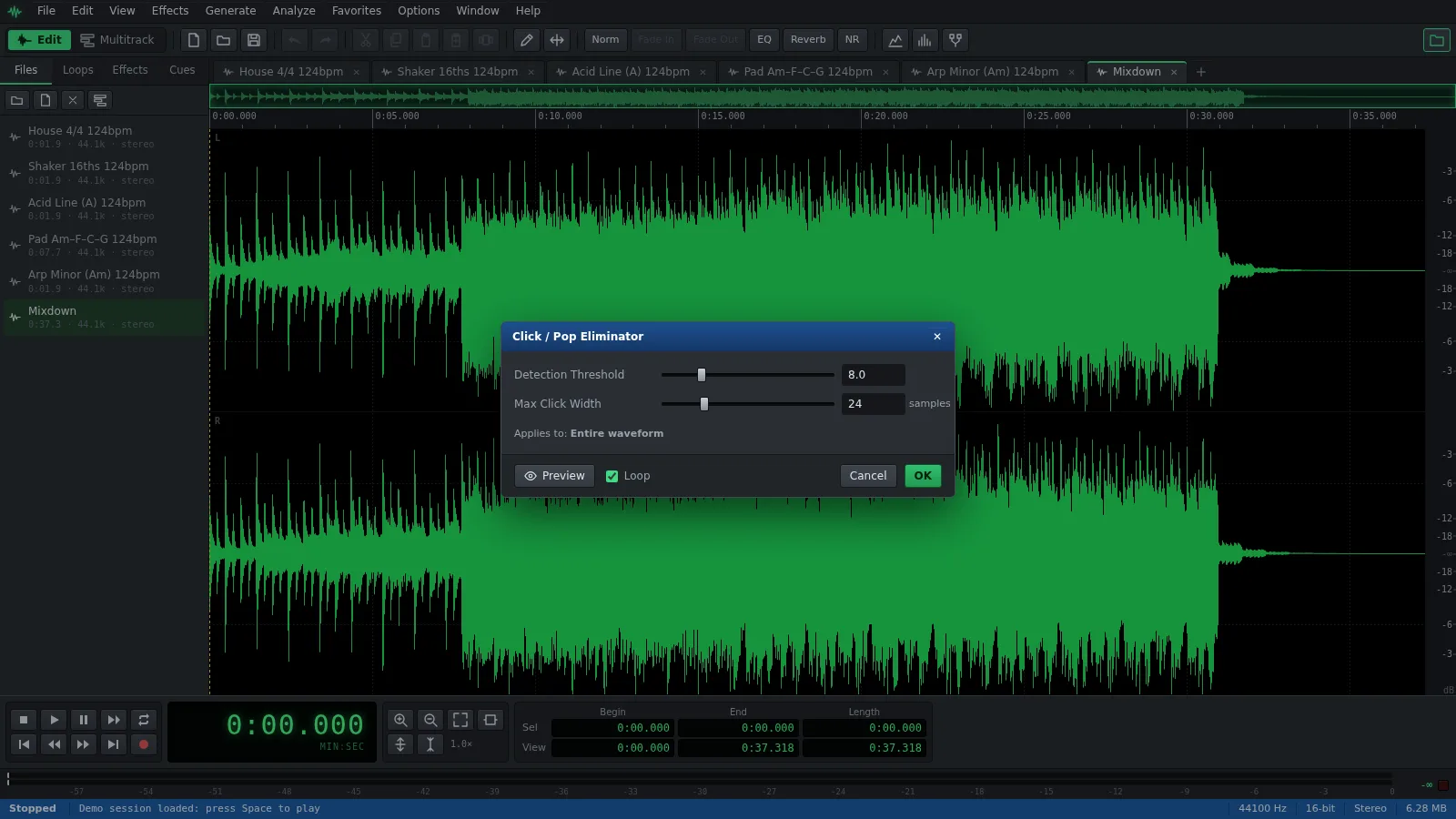
Open your recording, select the part with clicks and choose Effects ▸ Noise Reduction ▸ Click / Pop Eliminator… from the menu bar. Auditius finds the short spikes that stand out from the audio around them and redraws each one smoothly, in your browser and without uploading anything.
- Free
- No install, no account
- Files never leave your computer
- English and Spanish
How to remove clicks and pops, step by step
The Click / Pop Eliminator window opens as soon as your file has loaded.
- Click Open a file to declick, or use File ▸ Open… (Ctrl+O), and choose your recording.
- Select the passage with the clicks, or leave nothing selected to process the whole file.
- Open Effects ▸ Noise Reduction ▸ Click / Pop Eliminator… if the window is not already open.
- Start with the default values: Detection Threshold 8 and Max Click Width 24 samples.
- Press Preview and listen. Preview plays the first 12 seconds of the selection, so select a short passage with clicks to check it.
- If clicks remain, lower Detection Threshold; if drums or consonants start to sound dull or smeared, raise it again.
- Click OK and save the result with File ▸ Save As… in the format you need.
What the two settings do
The effect compares every sudden jump in the waveform with the average movement of the audio just around it. A jump many times bigger than that average counts as a click, and the samples it covers are replaced by a straight line between the good samples on either side.
- Detection Threshold, from 2 to 30: how much bigger than its surroundings a jump must be. Lower values catch quieter clicks but can also touch drum hits, consonants and other sharp attacks.
- Max Click Width, from 1 to 100 samples: the longest click it repairs. 24 samples is about half a millisecond at 44.1 kHz, and 100 samples is just over 2 ms.
- Because each repair is so short, the effect suits clicks and crackle, not longer thumps or bumps.
Vinyl crackle, mouth clicks and other sources
Switch to View ▸ Spectral to find clicks: they show as thin vertical streaks reaching up into the high frequencies. Zoom in with View ▸ Zoom In (=) and each one appears in the waveform as a sharp spike.
- Vinyl crackle: process the whole side at the default settings, then lower Detection Threshold a step at a time for worn records. Louder pops may need a second pass.
- Mouth clicks in speech: select only the phrase with the click and use a lower threshold there, rather than over the whole voice, so plosives and sharp consonants stay intact.
- A single click left over: zoom in, select a few milliseconds around it and apply the effect with a low threshold.
Related tools for hiss and noise
On old recordings, clicks are often only part of the problem. Remove the clicks first, then deal with the steady noise underneath.
- Effects ▸ Noise Reduction ▸ Hiss Reduction… lowers tape and record hiss without a noise profile, with the Light Hiss, Tape Hiss and Heavy Hiss presets.
- Effects ▸ Noise Reduction ▸ Noise Reduction… removes steady noise such as motor hum or room tone, after you capture a profile from a quiet groove or pause with Effects ▸ Noise Reduction ▸ Capture Noise Profile (F6).
Frequently asked questions
Will the Click / Pop Eliminator damage drums or sharp sounds?
It can if Detection Threshold is too low, because drum hits and hard consonants are fast too. Keep the threshold as high as still removes the clicks, and preview the loudest passages.
Can I remove vinyl crackle from a whole album side at once?
Yes. Leave nothing selected and the effect processes the whole file. For many files, record the steps with Edit ▸ Scripts ▸ Record Script, and File ▸ Batch Process… runs them over every file.
Why are some clicks still there after declicking?
They are probably wider than Max Click Width, or not much louder than the audio around them. Raise Max Click Width, lower Detection Threshold and apply it to a small selection around each click.
Can I remove clicks from only one stereo channel?
Yes. Choose Edit ▸ Edit Channel ▸ Left Channel or Right Channel before applying the effect, and the other channel is left untouched.
Is my audio uploaded when I remove clicks?
No. Click removal runs in your browser, on your own device, and nothing leaves it.
Audio tools
- Remove background noise from audio onlineRemove background noise from audio online for free: capture a noise profile, preview the result and export a clean file. Runs in your browser, with no uploads.
- Change the tempo of audio without changing the pitchChange the tempo of audio without changing the pitch: slow down or speed up songs, speech and loops in your browser. Free, nothing to install, and no uploads.
- Convert audio online: WAV, MP3, FLAC and OggConvert WAV to MP3 or FLAC online for free, or turn MP3, M4A and OGG into WAV. Choose bitrate or bit depth and export, all in your browser, with no uploads.
- Cut and join audio onlineCut and join audio online: trim MP3 or WAV files, remove unwanted parts and merge several recordings into one. Free, in your browser, with no uploads.
- Make loops and beats onlineMake loops online with royalty-free drum, bass and synth loops that follow your tempo. Repeat blocks, mix tracks and export WAV or MP3, free.
- Make audio louder onlineMake a quiet recording louder in your browser: boost the volume in dB, check the peaks so it does not distort and save the file. Free, and nothing is uploaded.
- Normalize audio onlineNormalize audio online for free: set the loudest peak to the level you choose, for one file or many, without clipping. Runs in your browser, with no uploads.
- Add a fade in and a fade out to audioAdd a fade in or a fade out to any song or recording in your browser: select the start or the end, pick a curve and save. Free, nothing to install, no uploads.
- Change the pitch of audio without changing the speedChange the pitch of a song or recording online for free: transpose by semitones or cents and keep the same speed and length. In your browser, with no uploads.
- Reverse audio online and play it backwardsReverse audio online for free: play a song, a voice or a sound effect backwards, or reverse only a selected part. Runs in your browser, with nothing uploaded.
- Make a ringtone from a song onlineMake a ringtone from any song online for free: pick the best 30 seconds, add fades, even out the volume and save it as an MP3. In your browser, with no uploads.
- Equalize audio online with a graphic equalizerEqualize audio online for free: boost the bass, tame harsh highs or clear up a voice with a 10-band graphic EQ, filters and presets. In your browser, no uploads.
- Compress audio online to even out the volumeFree online audio compressor: even out the loud and quiet parts of a voice, podcast or song with threshold, ratio and presets. In your browser, with no uploads.
- Add reverb to audio onlineAdd reverb to a voice, instrument or song online for free: choose a room, hall or plate preset, keep the tail and export. Runs in your browser, with no uploads.
- Record audio from your microphone onlineRecord audio from your microphone in the browser: watch the input level, record into a new or open file, play along in the multitrack and save as WAV or MP3.
- Fix clipped, distorted audio onlineFix clipped audio in your browser: spot the flattened peaks, rebuild them with Clip Restoration and keep the level below full scale. Free, nothing to install.
- Convert stereo audio to mono onlineConvert stereo audio to mono online for free: mix both channels with the Channel Mixer or make a true one-channel file. In your browser, with no uploads.
- Transcribe audio to text with AI, in your browserTranscribe audio to text with AI for free in your browser: word timings, click a word to hear it, SRT or VTT subtitles. Your recording is never uploaded.
- AI text to speech in Spanish and English, in your browserTurn text into speech with AI for free in your browser: Spanish and English voices, adjustable speed, pause tags and WAV export. Your text stays on your device.