 Auditius Free audio editor and multitrack studio in your browser
Transcribe audio to text with AI, in your browser
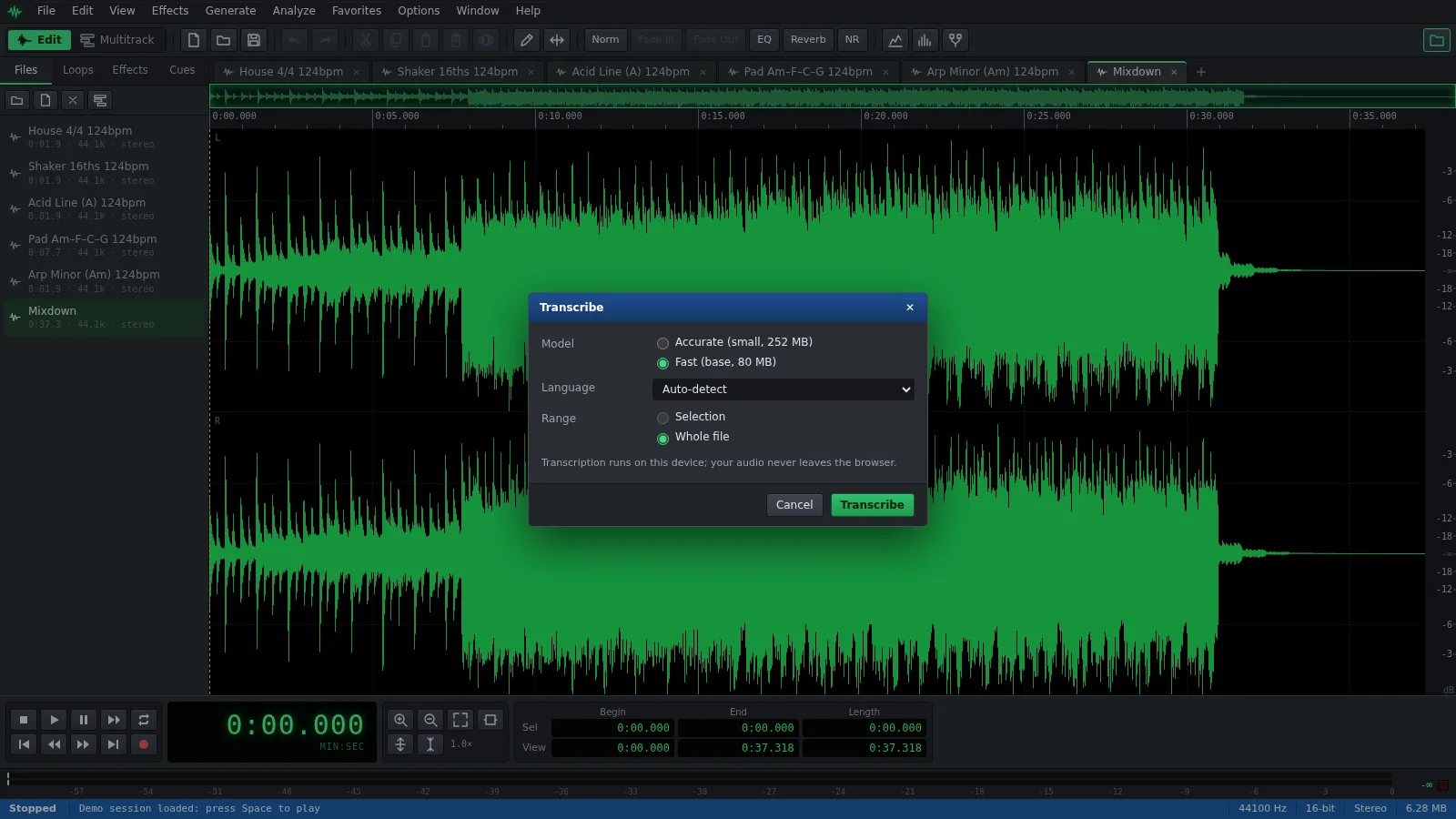
Open your recording and choose Analyze ▸ Transcribe…. Auditius runs Whisper, an AI speech recognition model, on your own device: you download it once, when you click Download, and from then on your audio never leaves the browser. Every word keeps its time, so you can click it to hear it and export subtitles.
- Free
- No install, no account
- Files never leave your computer
- English and Spanish
How to transcribe a recording, step by step
Transcription works on the file open in the editor, or on the part of it you select.
- Click Open a recording to transcribe, or use File ▸ Open… (Ctrl+O), and choose your audio file.
- To transcribe only part of it, drag across that part. Otherwise the whole file is used.
- Choose Analyze ▸ Transcribe…
- Pick a Model: Accurate (small, 252 MB) or Fast (base, 80 MB). Set Language to Auto-detect, Spanish or English, and Range to Selection or Whole file.
- The first time, click Download. The model is stored in this browser, so you only download it once.
- Click Transcribe. When it finishes, the text appears in the Transcript panel next to the waveform.
- Click any word to play from it, or Shift+click another word to select the audio up to it.
What you can do with the transcript
The transcript is more than text: every word keeps its start and end time in the recording.
- While the file plays, the current word is highlighted in the Transcript panel.
- Export SRT and Export VTT save subtitles. Lines break at the end of sentences and at long pauses, stay within 42 characters and 6 seconds, and follow the file’s timeline even when you transcribed only a selection.
- Add cues per sentence creates one range cue for each sentence, in a single step you can undo. You find them in Edit ▸ Cue List…, ready to jump from sentence to sentence.
- If you close the panel, Window ▸ Transcript shows it again. File ▸ Save Session… keeps the transcript with the file.
Choosing a model and getting better text
Accurate (Whisper small) is the one to use for Spanish. Fast (Whisper base) is about three times faster but rough in Spanish, so keep it for quick drafts.
- Auto-detect decides the language from the first 30 seconds. If the recording starts with music or another language, set the language yourself.
- Very short clips are transcribed poorly. Give it at least a few seconds of speech.
- Long recordings are processed in 30-second windows while a progress bar advances. The browser uses the graphics card through WebGPU when it can and the processor otherwise, which is slower.
- If you edit the audio after transcribing, the panel warns that word times may be off. Click Transcribe again to refresh them.
Where your recording goes
Nowhere. The model files are downloaded the first time you click Download and kept in this browser. Transcription then runs on your device, and both the audio and the text stay there, which makes it a good fit for interviews, meetings and other private recordings.
Frequently asked questions
Which languages can Auditius transcribe?
You can choose Spanish or English, or let Auto-detect decide from the first 30 seconds. For Spanish, use the Accurate model.
Do I have to download the transcription model every time?
No. After the first download it stays in this browser and is reused. The first model you download also brings a 27 MB runtime that the other models share. You can delete models later from the models window in the Options menu.
How do I make SRT or VTT subtitles from a recording?
Transcribe it with Analyze ▸ Transcribe…, then click Export SRT or Export VTT at the top of the Transcript panel. The subtitle lines are built from the word timings.
Is my recording uploaded to transcribe it?
No. The speech recognition model runs in your browser on your own device. Only the model itself is downloaded, once; your audio and the resulting text are never sent anywhere.
Can I transcribe the audio of a video?
Auditius does not open video files. Export the audio track from your video software, open it here and transcribe it; subtitles exported as SRT or VTT line up with the audio.
Audio tools
- Remove background noise from audio onlineRemove background noise from audio online for free: capture a noise profile, preview the result and export a clean file. Runs in your browser, with no uploads.
- Change the tempo of audio without changing the pitchChange the tempo of audio without changing the pitch: slow down or speed up songs, speech and loops in your browser. Free, nothing to install, and no uploads.
- Convert audio online: WAV, MP3, FLAC and OggConvert WAV to MP3 or FLAC online for free, or turn MP3, M4A and OGG into WAV. Choose bitrate or bit depth and export, all in your browser, with no uploads.
- Cut and join audio onlineCut and join audio online: trim MP3 or WAV files, remove unwanted parts and merge several recordings into one. Free, in your browser, with no uploads.
- Make loops and beats onlineMake loops online with royalty-free drum, bass and synth loops that follow your tempo. Repeat blocks, mix tracks and export WAV or MP3, free.
- Make audio louder onlineMake a quiet recording louder in your browser: boost the volume in dB, check the peaks so it does not distort and save the file. Free, and nothing is uploaded.
- Normalize audio onlineNormalize audio online for free: set the loudest peak to the level you choose, for one file or many, without clipping. Runs in your browser, with no uploads.
- Add a fade in and a fade out to audioAdd a fade in or a fade out to any song or recording in your browser: select the start or the end, pick a curve and save. Free, nothing to install, no uploads.
- Change the pitch of audio without changing the speedChange the pitch of a song or recording online for free: transpose by semitones or cents and keep the same speed and length. In your browser, with no uploads.
- Reverse audio online and play it backwardsReverse audio online for free: play a song, a voice or a sound effect backwards, or reverse only a selected part. Runs in your browser, with nothing uploaded.
- Make a ringtone from a song onlineMake a ringtone from any song online for free: pick the best 30 seconds, add fades, even out the volume and save it as an MP3. In your browser, with no uploads.
- Equalize audio online with a graphic equalizerEqualize audio online for free: boost the bass, tame harsh highs or clear up a voice with a 10-band graphic EQ, filters and presets. In your browser, no uploads.
- Compress audio online to even out the volumeFree online audio compressor: even out the loud and quiet parts of a voice, podcast or song with threshold, ratio and presets. In your browser, with no uploads.
- Add reverb to audio onlineAdd reverb to a voice, instrument or song online for free: choose a room, hall or plate preset, keep the tail and export. Runs in your browser, with no uploads.
- Record audio from your microphone onlineRecord audio from your microphone in the browser: watch the input level, record into a new or open file, play along in the multitrack and save as WAV or MP3.
- Remove clicks, pops and crackle from a recordingRemove clicks, pops and vinyl crackle from audio in your browser with the Click / Pop Eliminator. Preview the repair and save the result. Free, with no uploads.
- Fix clipped, distorted audio onlineFix clipped audio in your browser: spot the flattened peaks, rebuild them with Clip Restoration and keep the level below full scale. Free, nothing to install.
- Convert stereo audio to mono onlineConvert stereo audio to mono online for free: mix both channels with the Channel Mixer or make a true one-channel file. In your browser, with no uploads.
- AI text to speech in Spanish and English, in your browserTurn text into speech with AI for free in your browser: Spanish and English voices, adjustable speed, pause tags and WAV export. Your text stays on your device.