 Auditius Free audio editor and multitrack studio in your browser
Equalize audio online with a graphic equalizer
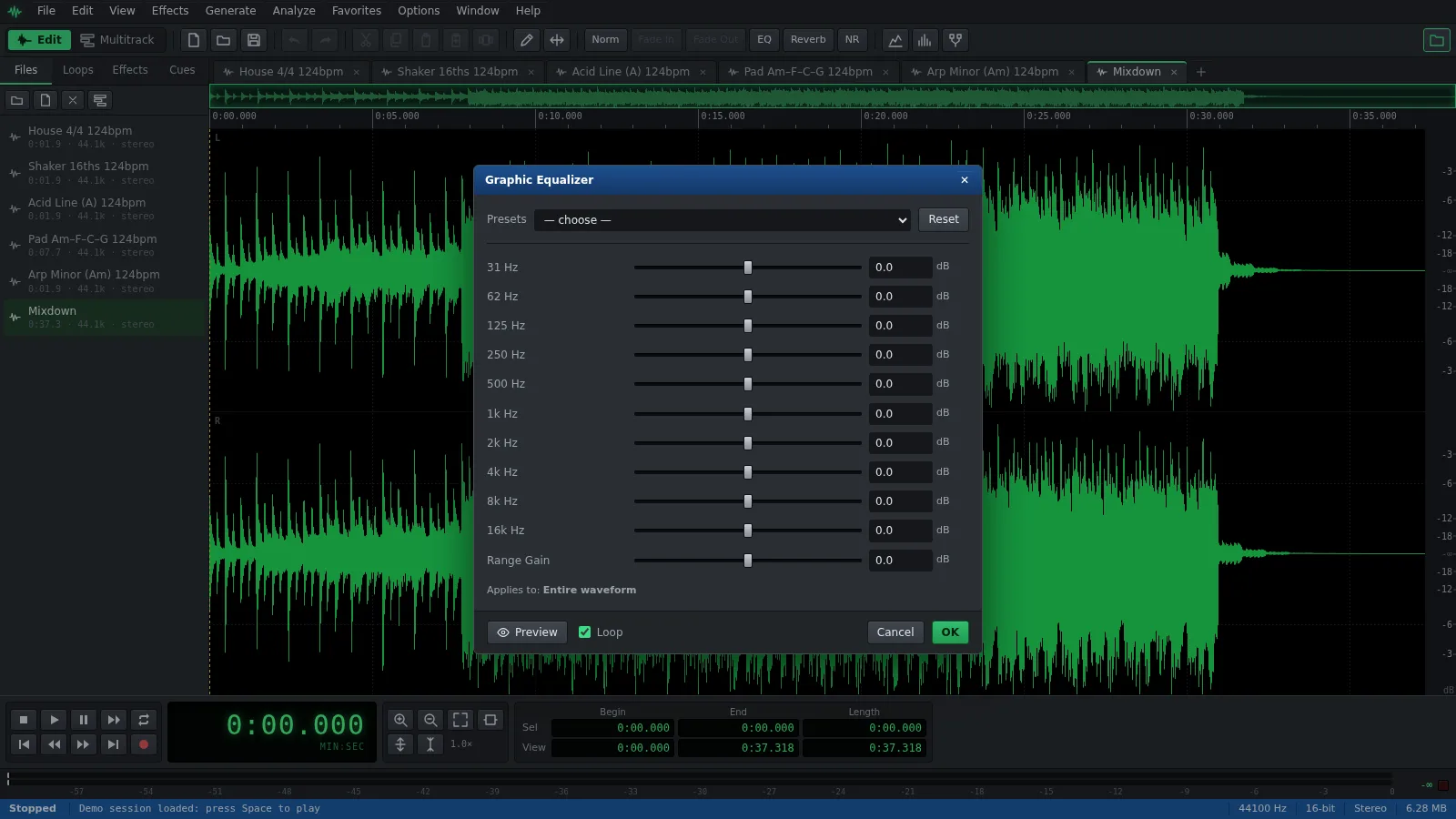
To equalize a recording, open it, choose Effects ▸ Filters ▸ Graphic Equalizer…, raise or lower the ten frequency bands and preview the result before you apply it. Auditius does it in your browser for free, and your audio is never uploaded.
- Free
- No install, no account
- Files never leave your computer
- English and Spanish
How to equalize audio, step by step
The Graphic Equalizer window opens as soon as your file has loaded.
- Click Open a file to equalize, or use File ▸ Open… (Ctrl+O), and choose your audio file.
- To change only part of the file, select it first. With nothing selected, the equalizer applies to the whole file.
- Open Effects ▸ Filters ▸ Graphic Equalizer… from the menu bar.
- Pick a preset as a starting point, such as Vocal Presence or Loudness, or start from Flat.
- Move the band sliders. Each one goes from -18 to +18 dB, from 31 Hz on the left to 16 kHz on the right.
- Press Preview and listen with Loop ticked while you adjust, then click OK.
- Save the result with File ▸ Save As… as WAV, FLAC, MP3 or Ogg Vorbis.
What each part of the spectrum does
These ranges are a rough guide to where common problems live.
- 31 and 62 Hz: sub-bass and rumble. Cut them on voices; boost them gently for a fuller kick and bass.
- 125 and 250 Hz: body and warmth. Too much sounds boomy.
- 500 Hz and 1 kHz: boxy and nasal tones. A small cut often clears up a muddy mix.
- 2 and 4 kHz: presence and intelligibility. A boost brings a voice forward; too much sounds harsh.
- 8 and 16 kHz: sibilance, cymbals and air. Cut for hiss and sharp esses, boost for brightness.
- The 31 Hz and 16 kHz sliders work as shelves: they move everything below or above them, not just one band.
- Not sure where the problem is? Analyze ▸ Frequency Analysis… (Alt+Z) shows which frequencies are strongest, and View ▸ Spectral shows them over time.
Other equalizers and filters in Auditius
The Effects ▸ Filters menu has three more tools for when ten fixed bands are not enough.
- Parametric EQ (3-Band)…: low and high shelves plus a mid band whose frequency and width (Mid Q) you choose, up to ±24 dB. Presets include Bass Boost, Telephone and Air.
- Filter (Butterworth / Biquad)…: one precise filter, such as Low Pass, High Pass, Notch or Peaking, from 20 Hz to 20 kHz, with a slope of 12, 24 or 48 dB/oct. Rumble Cut removes low rumble and Hum Notch 50Hz targets mains hum.
- FFT Filter…: draw the frequency response as a curve. Useful for steep cuts and unusual shapes, with presets such as High Pass 300 Hz and Notch 1 kHz.
- In the Multitrack view, each track’s effects rack offers 3-Band EQ and Filter in real time; open it with the fx button on the track header. The Graphic Equalizer and FFT Filter work in the edit view only.
Tips for a clean EQ
With equalizers, less is usually more.
- Cut before you boost. Lowering the band that bothers you usually sounds more natural than raising everything around it.
- Make small moves. A few dB is often enough; large boosts change the character of the sound and add level.
- Watch the level. Boosts can push peaks above 0 dB. Lower Range Gain to compensate, or run Effects ▸ Amplitude ▸ Normalize… afterwards.
- Remove noise first. Boosting the highs raises hiss as well, so clean the recording before you brighten it.
Frequently asked questions
How do I boost the bass of a song with the equalizer?
Raise the 62 and 125 Hz sliders a few dB in the Graphic Equalizer, or use the Bass Boost preset of Effects ▸ Filters ▸ Parametric EQ (3-Band)…, which lifts the lows by 8 dB. If peaks get too loud, normalize afterwards.
How do I make a voice clearer with EQ?
Start with the Vocal Presence preset, which lowers the bass and lifts 2 to 4 kHz. To remove only low rumble, use the Rumble Cut preset of Effects ▸ Filters ▸ Filter (Butterworth / Biquad)…, a high pass at 80 Hz.
Can I equalize just one track of a multitrack mix?
Yes. Add 3-Band EQ or Filter to that track’s effects rack. It plays in real time and does not change the source file, and Edit ▸ Master Effects… does the same for the whole mix.
Why does my audio distort after an EQ boost?
Boosting adds level, and peaks above 0 dB can clip when you play or export them. Lower Range Gain by about the amount you boosted, or apply Effects ▸ Amplitude ▸ Normalize… before saving.
Audio tools
- Remove background noise from audio onlineRemove background noise from audio online for free: capture a noise profile, preview the result and export a clean file. Runs in your browser, with no uploads.
- Change the tempo of audio without changing the pitchChange the tempo of audio without changing the pitch: slow down or speed up songs, speech and loops in your browser. Free, nothing to install, and no uploads.
- Convert audio online: WAV, MP3, FLAC and OggConvert WAV to MP3 or FLAC online for free, or turn MP3, M4A and OGG into WAV. Choose bitrate or bit depth and export, all in your browser, with no uploads.
- Cut and join audio onlineCut and join audio online: trim MP3 or WAV files, remove unwanted parts and merge several recordings into one. Free, in your browser, with no uploads.
- Make loops and beats onlineMake loops online with royalty-free drum, bass and synth loops that follow your tempo. Repeat blocks, mix tracks and export WAV or MP3, free.
- Make audio louder onlineMake a quiet recording louder in your browser: boost the volume in dB, check the peaks so it does not distort and save the file. Free, and nothing is uploaded.
- Normalize audio onlineNormalize audio online for free: set the loudest peak to the level you choose, for one file or many, without clipping. Runs in your browser, with no uploads.
- Add a fade in and a fade out to audioAdd a fade in or a fade out to any song or recording in your browser: select the start or the end, pick a curve and save. Free, nothing to install, no uploads.
- Change the pitch of audio without changing the speedChange the pitch of a song or recording online for free: transpose by semitones or cents and keep the same speed and length. In your browser, with no uploads.
- Reverse audio online and play it backwardsReverse audio online for free: play a song, a voice or a sound effect backwards, or reverse only a selected part. Runs in your browser, with nothing uploaded.
- Make a ringtone from a song onlineMake a ringtone from any song online for free: pick the best 30 seconds, add fades, even out the volume and save it as an MP3. In your browser, with no uploads.
- Compress audio online to even out the volumeFree online audio compressor: even out the loud and quiet parts of a voice, podcast or song with threshold, ratio and presets. In your browser, with no uploads.
- Add reverb to audio onlineAdd reverb to a voice, instrument or song online for free: choose a room, hall or plate preset, keep the tail and export. Runs in your browser, with no uploads.
- Record audio from your microphone onlineRecord audio from your microphone in the browser: watch the input level, record into a new or open file, play along in the multitrack and save as WAV or MP3.
- Remove clicks, pops and crackle from a recordingRemove clicks, pops and vinyl crackle from audio in your browser with the Click / Pop Eliminator. Preview the repair and save the result. Free, with no uploads.
- Fix clipped, distorted audio onlineFix clipped audio in your browser: spot the flattened peaks, rebuild them with Clip Restoration and keep the level below full scale. Free, nothing to install.
- Convert stereo audio to mono onlineConvert stereo audio to mono online for free: mix both channels with the Channel Mixer or make a true one-channel file. In your browser, with no uploads.
- Transcribe audio to text with AI, in your browserTranscribe audio to text with AI for free in your browser: word timings, click a word to hear it, SRT or VTT subtitles. Your recording is never uploaded.
- AI text to speech in Spanish and English, in your browserTurn text into speech with AI for free in your browser: Spanish and English voices, adjustable speed, pause tags and WAV export. Your text stays on your device.