 Auditius Free audio editor and multitrack studio in your browser
Make audio louder online
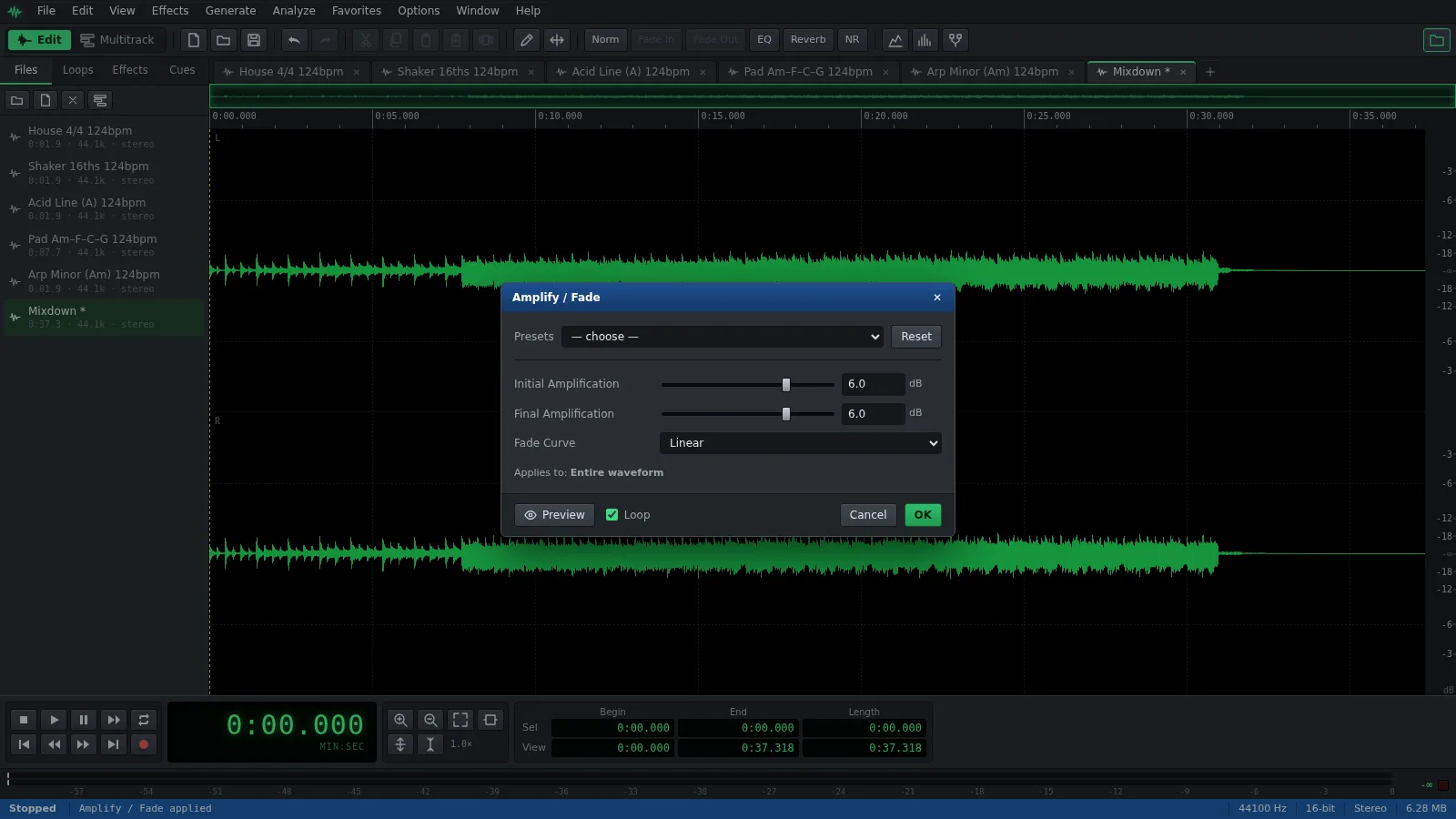
To make a quiet file louder, open it, choose Effects ▸ Amplitude ▸ Amplify / Fade…, set the same positive value in Initial Amplification and Final Amplification and click OK. Auditius does it in your browser for free, and your audio is never uploaded.
- Free
- No install, no account
- Files never leave your computer
- English and Spanish
How to make a quiet recording louder
The Amplify / Fade window opens as soon as your file has loaded.
- Click Open a file to amplify, or use File ▸ Open… (Ctrl+O), and choose your audio file.
- To raise only one part, such as a quiet speaker, select it first. With nothing selected, the change applies to the whole file.
- Open Effects ▸ Amplitude ▸ Amplify / Fade… if it is not already open.
- Pick the +3 dB or +6 dB preset, or type the same value in Initial Amplification and Final Amplification. Both go from -60 to +30 dB.
- Press Preview and listen to the loudest passages. If they crackle or sound harsh, lower the value.
- Click OK, then save the file with File ▸ Save As… in the format you need.
How much louder can it go before it distorts
A digital file has a ceiling at 0 dB. Amplify adds the same gain to everything, so once the loudest peak reaches that ceiling, anything more gets clipped: the tops of the wave are flattened and you hear crackle and distortion.
Before amplifying, open Analyze ▸ Statistics… and look at Peak Amplitude. If the peak is at -8 dB, you can add up to about 8 dB.
- +6 dB roughly doubles the level of the wave; +3 dB is a smaller, safer step.
- If you simply want the loudest peak right below the ceiling, Effects ▸ Amplitude ▸ Normalize… works out the gain for you.
- After amplifying, Possibly Clipped Samples in the same Statistics window should still read 0.
- During playback, the clip indicator next to the level meter lights up when the signal hits full scale. Click it to reset it.
When a few loud peaks get in the way
Many recordings have a few sharp peaks, such as a laugh, a cough or a snare hit, that reach the ceiling long before the rest sounds loud. Turning everything up will not help; tame those peaks first.
- Effects ▸ Amplitude ▸ Hard Limiting…: raises the level with Boost Input by and stops the peaks at Limit Max Amplitude to. The Loud Master preset adds 6 dB with a ceiling of -0.3 dB.
- Effects ▸ Amplitude ▸ Dynamics Processing…: a compressor that brings loud and quiet parts closer together and then adds Output Gain. The Gentle Vocal preset is a good start for speech.
- For one isolated peak, select just that moment, lower it with the -6 dB preset of Amplify / Fade, then amplify the whole file.
- Remove background noise before you amplify. Making the file louder makes the noise louder too.
Making audio quieter
The same window turns audio down: use negative values or the -6 dB preset. Lowering the level never distorts, but it cannot repair peaks that were already clipped when the file was recorded. For those, try Effects ▸ Noise Reduction ▸ Clip Restoration…, which rebuilds flattened peaks.
Frequently asked questions
Why does my audio distort after amplifying it?
The gain pushed the peaks past 0 dB and they were clipped. Undo with Ctrl+Z and use a smaller value, check Peak Amplitude in Analyze ▸ Statistics…, or use Hard Limiting to raise the level while holding the peaks down.
How many dB can I amplify a recording in one go?
Amplify / Fade goes up to +30 dB and down to -60 dB in one pass. How much you can really add depends on the peaks: beyond the ceiling, the audio clips.
Should I amplify or normalize a quiet recording?
Normalize is quicker when you want the file as loud as it can be without clipping, because it measures the peak for you. Amplify is better when you want a specific change, such as exactly +4 dB, or a level that changes over time.
Can I make just one voice or one passage louder?
Yes. Select that part before opening Amplify / Fade. The window shows the length of the selection next to Applies to, and the rest of the file is not touched.
Can I make an MP3 louder and keep it as MP3?
Yes. Open the MP3, amplify it and save it with File ▸ Save As… as MP3. Saving encodes the file again, so if you plan more edits, save as WAV until the last step.
Audio tools
- Remove background noise from audio onlineRemove background noise from audio online for free: capture a noise profile, preview the result and export a clean file. Runs in your browser, with no uploads.
- Change the tempo of audio without changing the pitchChange the tempo of audio without changing the pitch: slow down or speed up songs, speech and loops in your browser. Free, nothing to install, and no uploads.
- Convert audio online: WAV, MP3, FLAC and OggConvert WAV to MP3 or FLAC online for free, or turn MP3, M4A and OGG into WAV. Choose bitrate or bit depth and export, all in your browser, with no uploads.
- Cut and join audio onlineCut and join audio online: trim MP3 or WAV files, remove unwanted parts and merge several recordings into one. Free, in your browser, with no uploads.
- Make loops and beats onlineMake loops online with royalty-free drum, bass and synth loops that follow your tempo. Repeat blocks, mix tracks and export WAV or MP3, free.
- Normalize audio onlineNormalize audio online for free: set the loudest peak to the level you choose, for one file or many, without clipping. Runs in your browser, with no uploads.
- Add a fade in and a fade out to audioAdd a fade in or a fade out to any song or recording in your browser: select the start or the end, pick a curve and save. Free, nothing to install, no uploads.
- Change the pitch of audio without changing the speedChange the pitch of a song or recording online for free: transpose by semitones or cents and keep the same speed and length. In your browser, with no uploads.
- Reverse audio online and play it backwardsReverse audio online for free: play a song, a voice or a sound effect backwards, or reverse only a selected part. Runs in your browser, with nothing uploaded.
- Make a ringtone from a song onlineMake a ringtone from any song online for free: pick the best 30 seconds, add fades, even out the volume and save it as an MP3. In your browser, with no uploads.
- Equalize audio online with a graphic equalizerEqualize audio online for free: boost the bass, tame harsh highs or clear up a voice with a 10-band graphic EQ, filters and presets. In your browser, no uploads.
- Compress audio online to even out the volumeFree online audio compressor: even out the loud and quiet parts of a voice, podcast or song with threshold, ratio and presets. In your browser, with no uploads.
- Add reverb to audio onlineAdd reverb to a voice, instrument or song online for free: choose a room, hall or plate preset, keep the tail and export. Runs in your browser, with no uploads.
- Record audio from your microphone onlineRecord audio from your microphone in the browser: watch the input level, record into a new or open file, play along in the multitrack and save as WAV or MP3.
- Remove clicks, pops and crackle from a recordingRemove clicks, pops and vinyl crackle from audio in your browser with the Click / Pop Eliminator. Preview the repair and save the result. Free, with no uploads.
- Fix clipped, distorted audio onlineFix clipped audio in your browser: spot the flattened peaks, rebuild them with Clip Restoration and keep the level below full scale. Free, nothing to install.
- Convert stereo audio to mono onlineConvert stereo audio to mono online for free: mix both channels with the Channel Mixer or make a true one-channel file. In your browser, with no uploads.
- Transcribe audio to text with AI, in your browserTranscribe audio to text with AI for free in your browser: word timings, click a word to hear it, SRT or VTT subtitles. Your recording is never uploaded.
- AI text to speech in Spanish and English, in your browserTurn text into speech with AI for free in your browser: Spanish and English voices, adjustable speed, pause tags and WAV export. Your text stays on your device.